Navigation
Search for devices
Read article
To access your devices, click My devices in the top menu.
This sends you to your main group which contains all the devices you have access to.
This can be compared to the “Documents” folder on your computer: your files might be organized in other subfolders, but they are all contained under this main folder.

On the large Trusted-tile, you can see the count of devices in your group:
Your devices might not be viewable directly from your My devices screen.
In this example, three devices (black tiles) are visible in the main group.
On the large Trusted-tile, you can see the count of devices in your group in the bottom left corner = 5.
This means that other than the three trackers visible, two more are located in subgroups.
The main Trusted-tile, also shows you the state of your devices (bottom right):
The following options are available on group level:
Large Trusted-tile: see number of active devices and devices in total
Click this tile to get a list of devices for this group (It enables you to multi-edit devices, select devices for utilization data, last 10 positions and export data).
Parent: Go to parent group
Map: View all devices on map
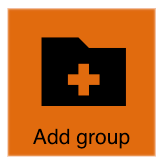
Add group: add a subgroup to this group or a subgroup
Edit group: edit name and parent group (only available for subgroups)
Edit sites: add, edit or delete geo sites
FW updates: firmware updates available
Idle devices: devices that have not left the geo site for a specified period
Daily utilization: utilization data for all your devices on a specific day
Reports: download PDF reports (learn more here)
Devices with low battery: total number of devices with low battery
Recent events: see logs, transmissions and messages from the devices
Device needs inspection: see list of devices you should inspect
Small orange tile: go to a user-specified subgroup
Black tile: device located in the group
Assigning individual devices to specified subgroups is a great tool to help you keep your devices organized.
Go to My devices and click on the tile Add group to create a new group.
Read more about creating subgroups here.
Other articles in this category that might help
Can't find what you're looking for? Our support team is here to help.
Contact Support