-
1
Why should I create subgroups?
Add and edit subgroups to keep your devices structured and easy to manage. By organizing devices into subgroups, you can control user access, simplify administration, and efficiently manage large device fleets within a single group.
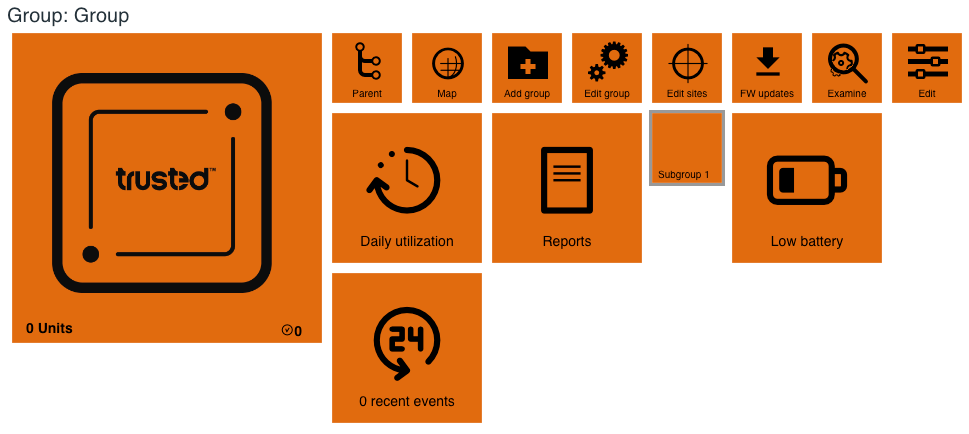
Subgroups are shown as orange tiles inside a group and are marked with a name.
Why should I add and edit subgroups?
Creating and editing subgroups helps you keep devices organized and assign the right access to the right users.
Example: using subgroups to organize devices
You own 45 devices:
- 10 devices track position and mileage on trailers
→ Create a Trailers subgroup and give access to the trailer responsible. - 20 devices track utilization data on excavators
→ Create an Excavators subgroup and give access to the excavator team. - 15 devices are used daily on rental equipment for theft protection
→ Create a Rental equipment subgroup and give access to the rental responsible.
Once your devices are organized into subgroups, you can multi‑edit all devices in a subgroup at once, saving time and reducing errors.

- 10 devices track position and mileage on trailers
-
2
How to create subgroups
There are two ways to add a subgroup:
- Go to My devices and click Add group on the group dashboard.
- Go to Users and click New group on the left side under the Trusted logo.

Create a new subgroup
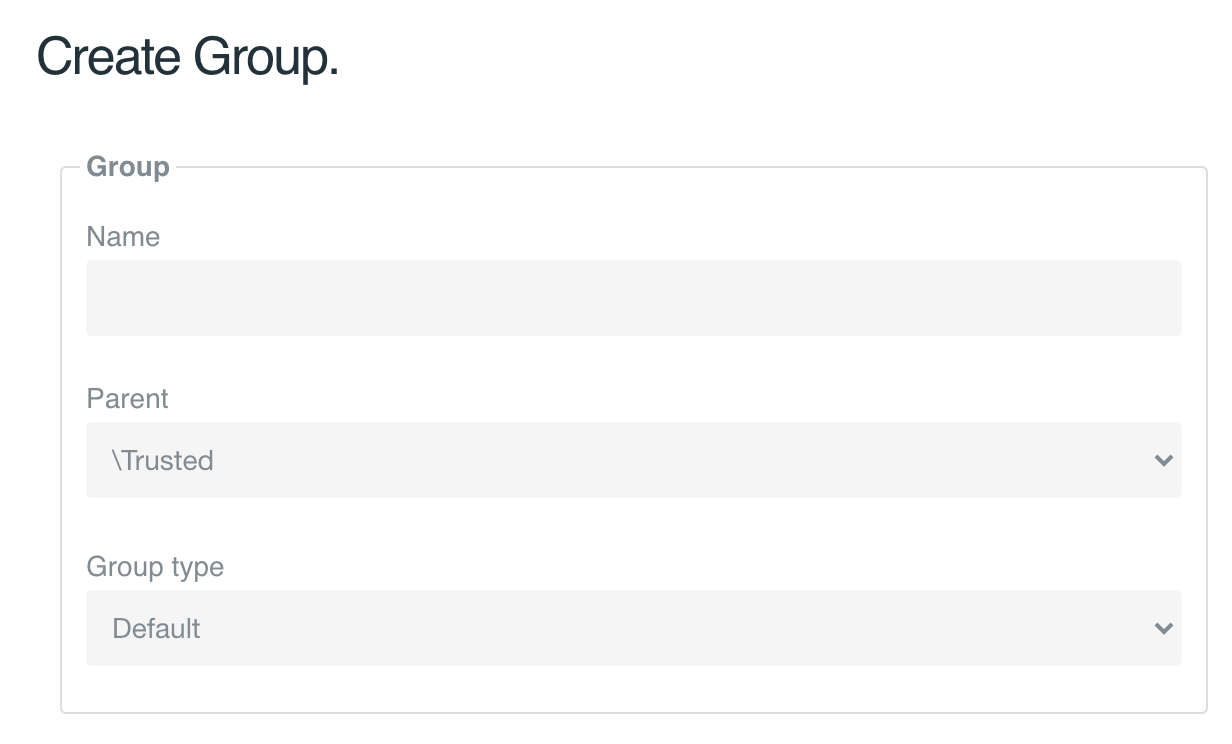
- Enter a name for the new subgroup.
- Select the Parent group (this determines where the subgroup is placed).
- Click Save.
You can create additional subgroups or subgroups of subgroups by opening an existing group and clicking Add group at that level.
There is no limit to how many subgroups you can create.

-
3
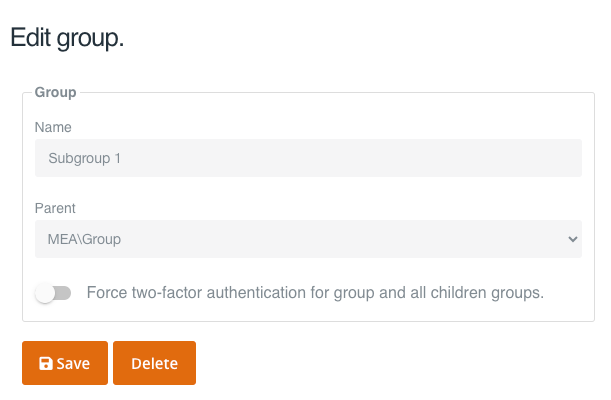
How to edit subgroups
To edit a subgroup:
- Open the subgroup you want to change.
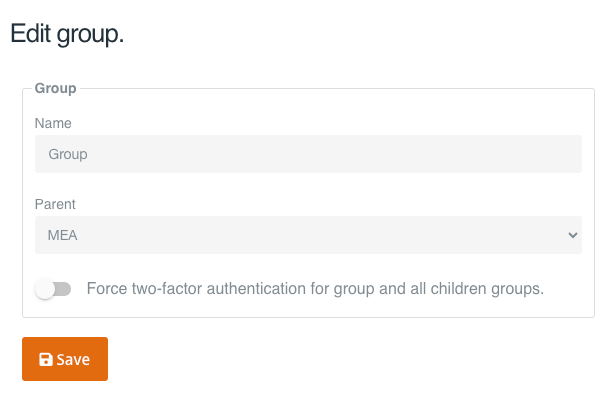
- Click Edit group.

You can:
- Change the group name
- Move the subgroup to another parent group
- Force two‑factor authentication for the group and all its subgroups
(Learn more about two‑factor authentication in the related article.)
Remember to click Save after making changes.
-
4
How to move devices to subgroups
To move a device to a different subgroup:
- Open the device you want to move.
- Click Edit.
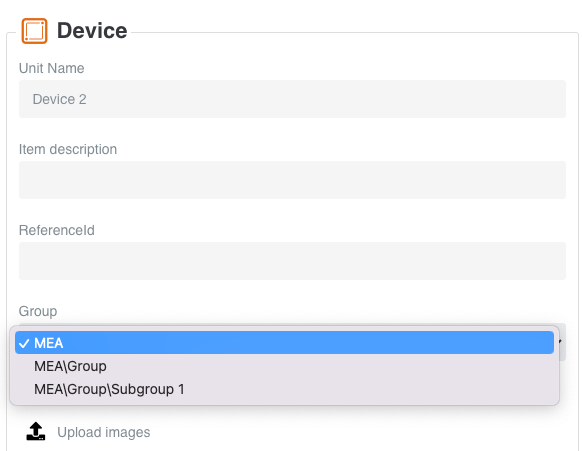
- Scroll to Device.
- Select the desired subgroup under Group.
The device is now moved to the selected subgroup.
-
5
How to delete a subgroup
To delete a subgroup:

- Open the subgroup.
- Click Edit group.
Before deleting, make sure the subgroup is completely empty:
- No devices
- No subgroups
- No users with exclusive access to this subgroup
When can I delete a subgroup?
- If you see the Delete button, the subgroup is empty and can be deleted.
- If you do not see the Delete button, you must first:
- Move devices to another subgroup
- Move subgroups to another (sub)group
- Give affected users access to another subgroup

Add and edit subgroups
Related Articles
Other articles in this category that might help
Still need help?
Can't find what you're looking for? Our support team is here to help.
Contact Support