Analyze
Utilization
Read article
Data from across the Trusted Data Portal can be exported to .xlsx files for further analysis or for your records.
Export is possible from the pages where you view your data on lists, such as Positions, Transmissions, Trips and Utilization.
Of course it is also possible to export data from your Tags.
For more advanced or specified export options, do not hesitate to contact us and hear more.
Press the Export button at the bottom of Positions, Transmissions, Trips and Utilization to download a .xlsx file with all the underlying data from your trackers.

In Manage Account, you can adjust decimal symbol and digit grouping to fit your regional settings (see Regional settings).

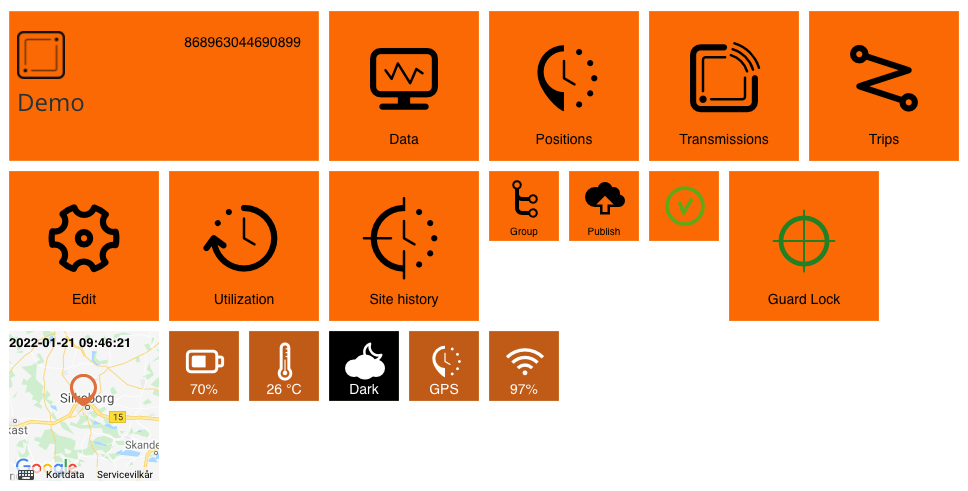
Go to Edit and scroll down to Tags.
Click “Export Telemetrics” to export all the data from the tags to an Excel-file.
If you wish to export data for individual tags only, press the tag in question and click the export icon.


Go to the group dashboard and click on the tracking icon to get the list of the devices in the group.
Select the devices you want data from and press export at the bottom of the page.
Press export group if you need data for the entire group.

Export in .xlsx is standard. Under your user settings, you can change to .csv if needed.

Other articles in this category that might help
Can't find what you're looking for? Our support team is here to help.
Contact Support