App
Syncing with Trusted Bluetooth-devices
Read article
Download for free and log in with your user


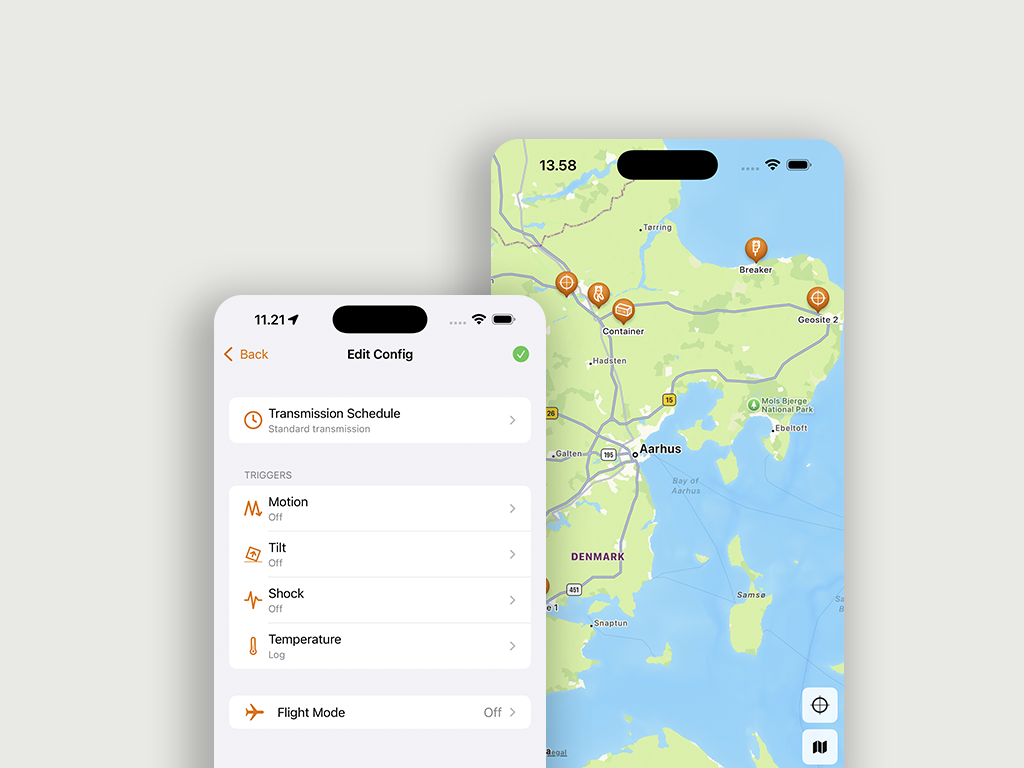
View devices on maps and see if your assets are home or away. Tab to get directions to its position.
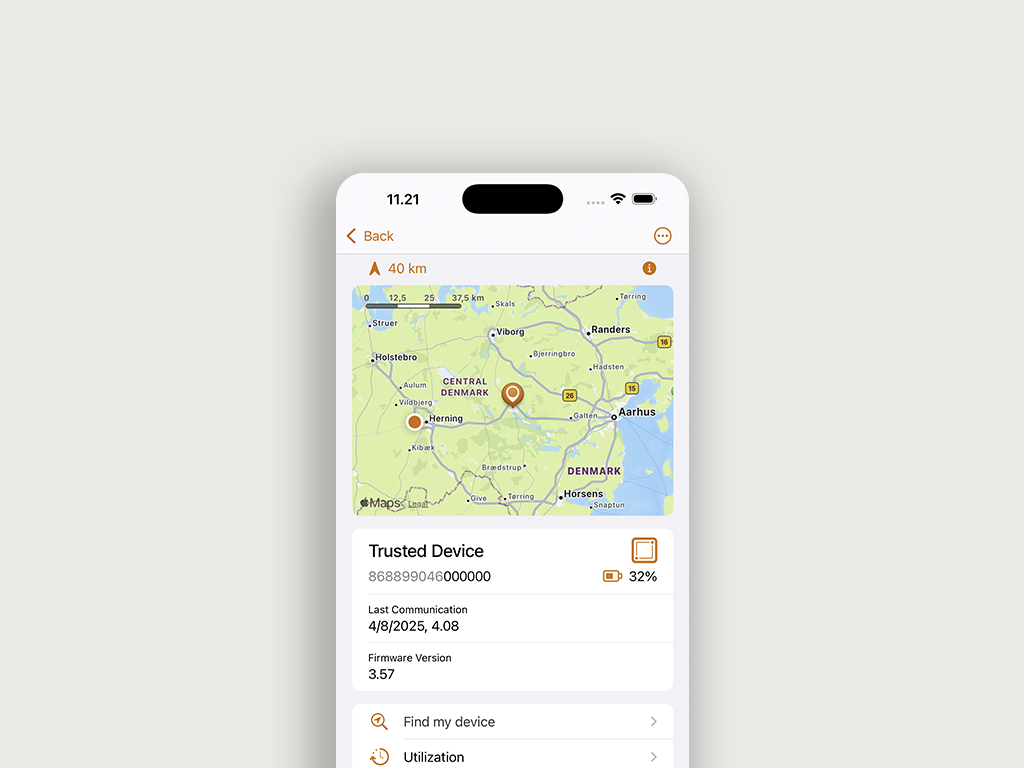
See your tracking devices on lists and in groups. Browse, search and sort devices as you like.
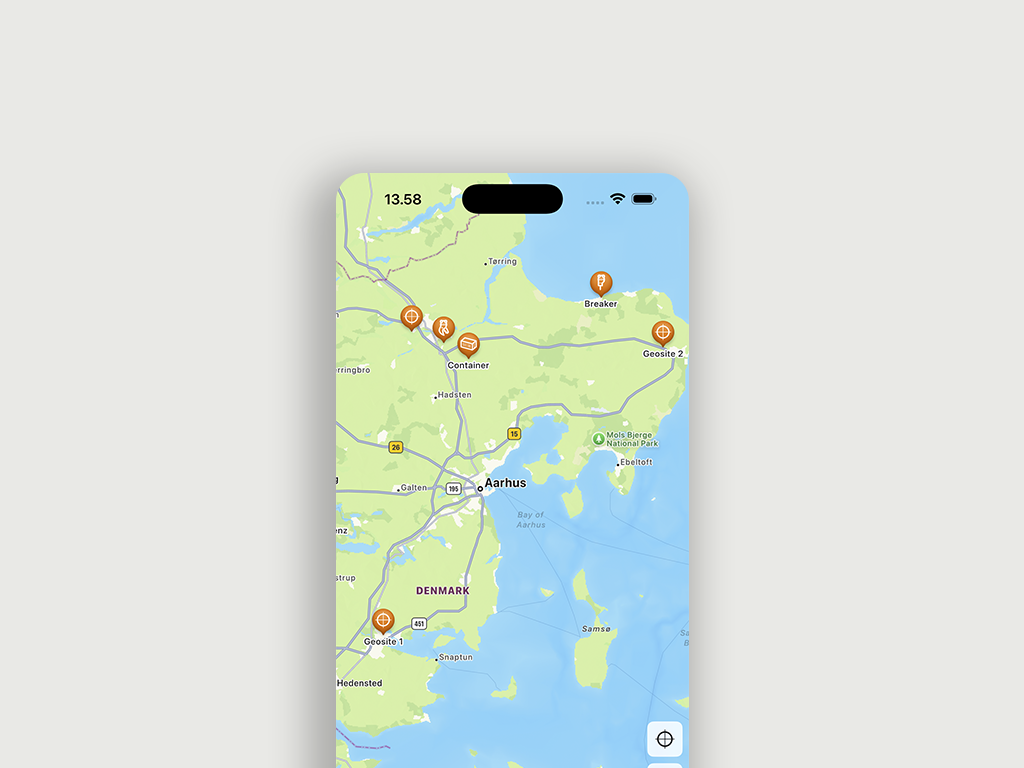
Browse data on zoomable graphs. Identify incidents on the go and see incident location.
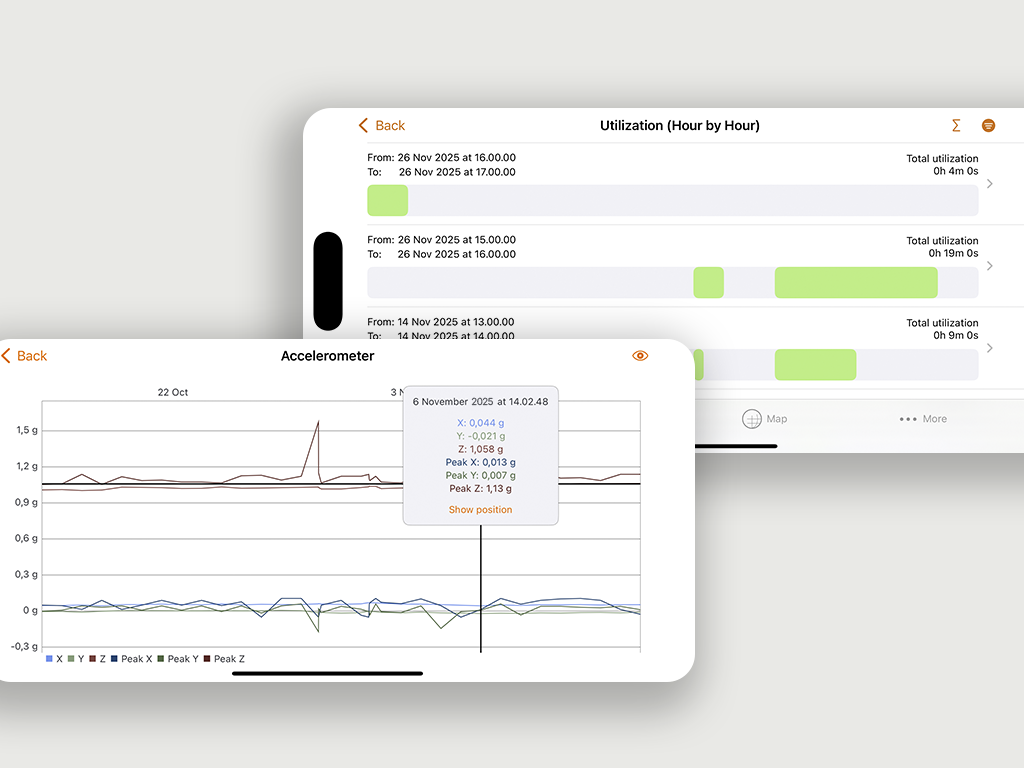
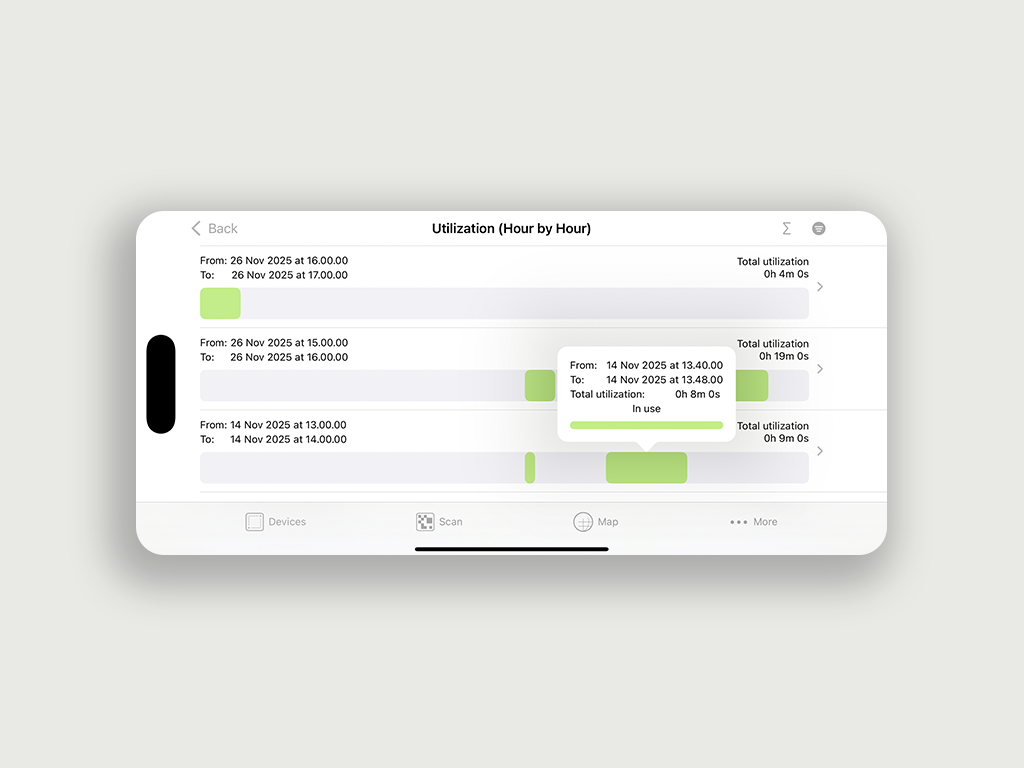
Utilization data is now available on your app. Browse running hours or see daily use of assets in minutes.
Configure device transmissions and triggers. Set up flight mode or turn on Guard Lock.
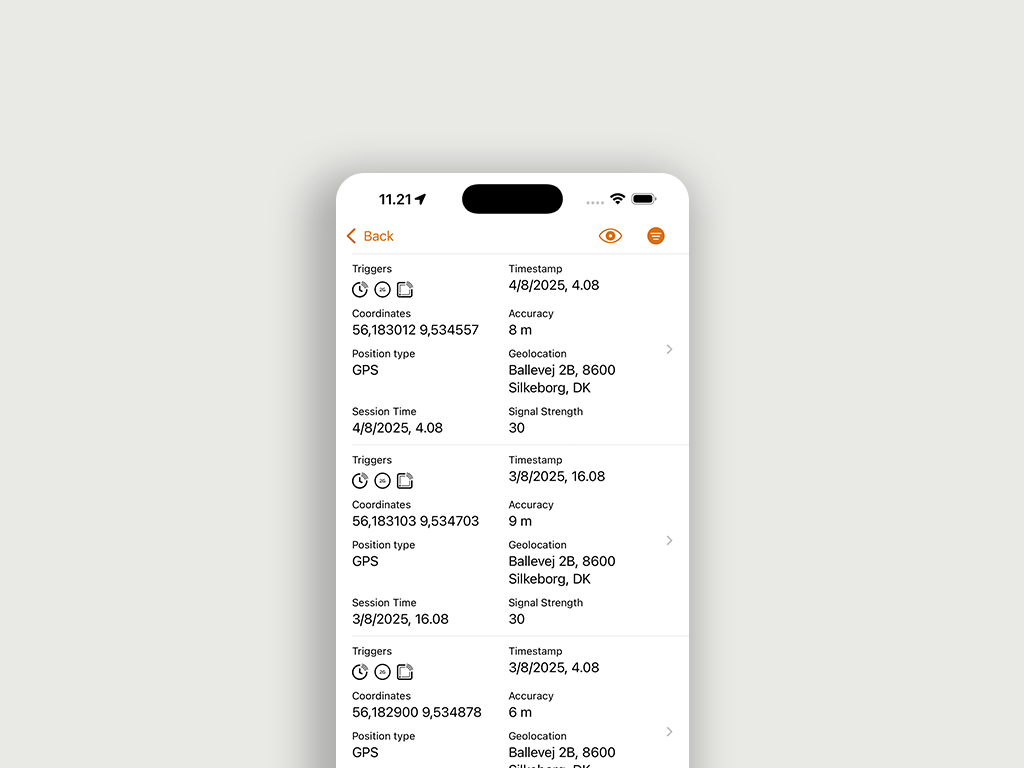
Monitor all transmissions and data from your device on the transmission overview.
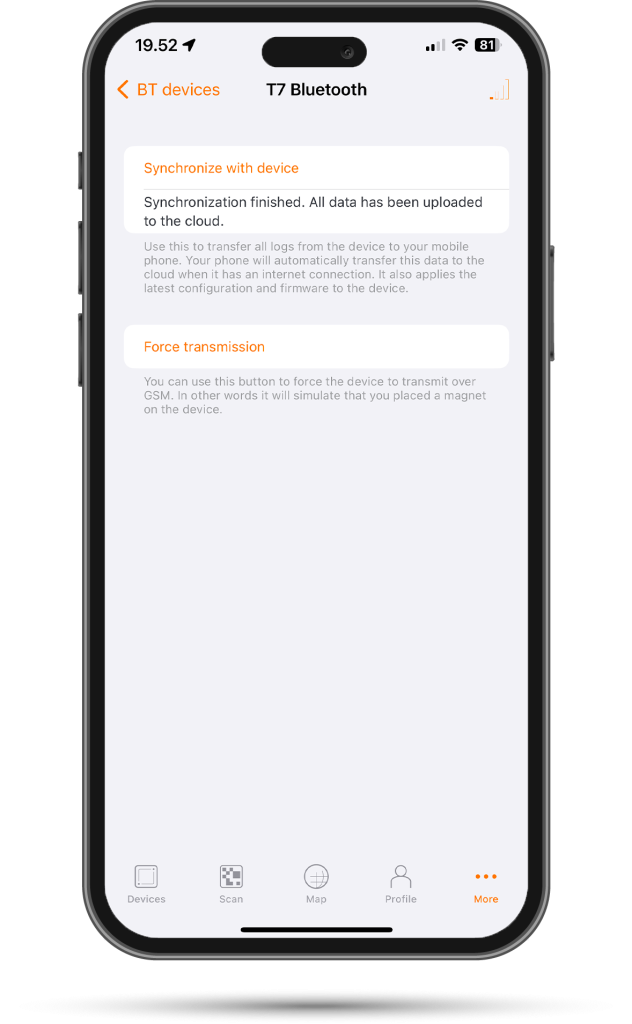
Synchronize and download all recorded data from Trusted BLE devices using the phone’s Bluetooth. Click More and select Bluetooth in the menu.
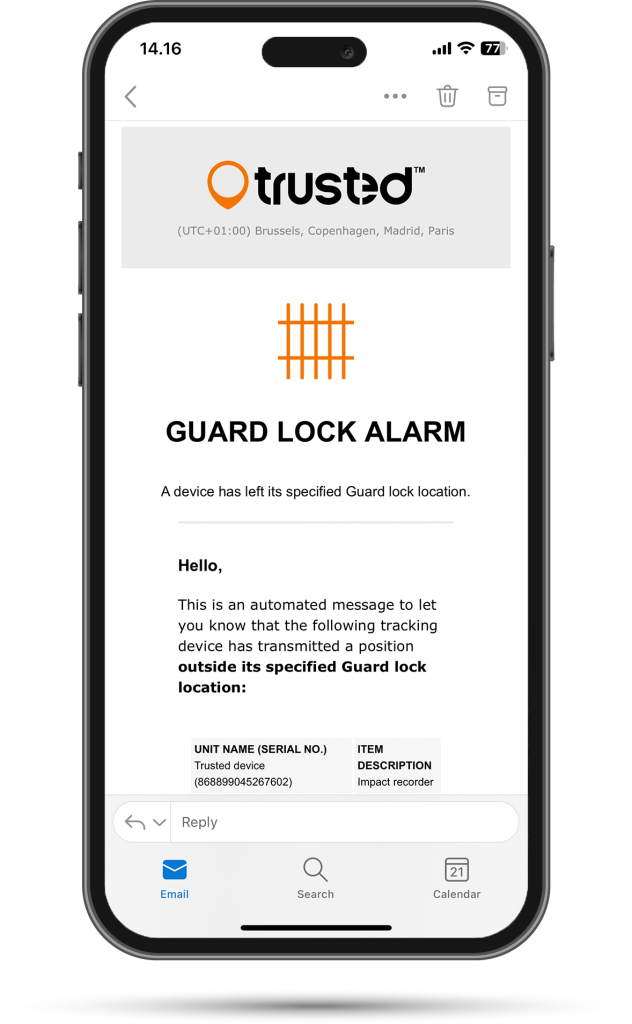
Activate Guard Lock to lock a device to a position virtually. You will receive an alarm if it moves to a new location.
With the scan feature in the Trusted App, you can easily set up and configure devices while you mount them in the field.
Choose a random device you want to mount to a particular asset. Scan it with the app and assign a relevant name and group along with the transmission schedule of your choice right on your phone.
Activate the device with a magnet and mount it to your asset.
Tip: Grab a picture of the installation and asset directly in the app for later reference.
With the app, you can also confirm that trackers are activated and working in the field.
Scan the mounted device in the app and confirm that it is transmitting by viewing position and latest communication in your app.
Note: When you activate or force devices to send a transmission by applying a magnet, it can take up to 15 minutes before data is online. This is particularly the case for devices that are activated for the first time.
Try out the new features of the Trusted Data App today!
Download the app for free to your preferred device and log in using the same login information as on the Trusted Data Portal.
Other articles in this category that might help
Can't find what you're looking for? Our support team is here to help.
Contact Support