App
Trusted Data App highlights
Read article
In this article, we will explore how you use the Trusted Data app to sync with your Trusted Bluetooth-devices.
Trusted Bluetooth-devices feature Bluetooth Low Energy which enables you to connect, update, and download data with your phone’s Bluetooth connection through the Trusted Data app.
Normally, all Trusted devices will connect, update, and transmit data via LTE/GSM networks, but with a Trusted Bluetooth-device and the Trusted Data app, you can complete this progress regardless of whether the tracker is in network coverage. Your phone does not require network connection during the process either.
This is revolutionary in two ways:
All you need is the Trusted Data app and the Bluetooth-device in close proximity of your phone.
All these benefits are only available to Bluetooth-devices.
You can check if your device has Bluetooth Low Energy built in by looking at your hardware if you see the official Bluetooth icon on the label (check icon in the header of this article).
Another way is to check the device model on Trusted Data Portal or in your Trusted Data App: ex. T7.
Even though the Bluetooth standard in your Bluetooth-device is Bluetooth Low Energy, Bluetooth is turned off as standard.
Therefore, to start using the Bluetooth feature, you first need to enable the Bluetooth module on your device.
This is done on the Trusted Data Portal, go to your device, click Edit, and scroll to Bluetooth.
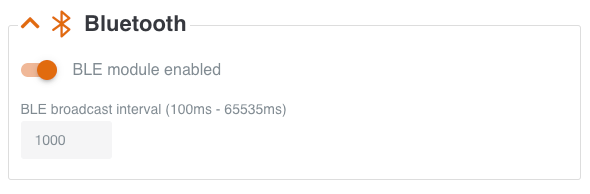
Just leave the default value in the Bluetooth broadcast interval. At the next transmission, your Bluetooth device will have Bluetooth enabled.
Next, make sure you have the Trusted Data App installed on your phone.
Download below:


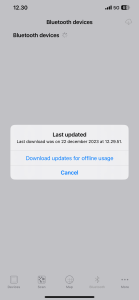
Before you approach your Bluetooth device(s) to sync, make sure you have the latest updates for your device downloaded to your phone.
Updates include new settings and configurations you might have made to your device(s) on the app or the Trusted Data Portal, or even firmware updates ordered for your device(s) online.
These updates will automatically be downloaded to your app in the background, but to make sure you have all the latest data before you sync, we suggest to complete the following while your phone still has a network connection:
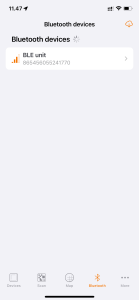
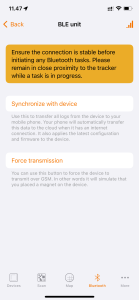
While in close proximity to your Trusted Bluetooth-device open the Trusted Data App, and click the Bluetooth tab in the bottom menu. Nearby Bluetooth devices will appear in the list.
Click one of your Bluetooth devices to connect. A few options now appear.
Always ensure the connection is stable before initiating any Bluetooth tasks AND always remain in close proximity to the device while a task is in progress.
Once data from one device is downloaded to your app, you can safely move on to connect and download data from another device.
Remember, it is only users with access to your devices on the Trusted Data Portal that can see them – or connect – by using the app.
As mentioned in the instructions above, Trusted Bluetooth-edition data trackers are especially handy for data tracking outside LTE/GSM coverage.
With Bluetooth-devices the worry of not receiving data from your Trusted data tracking device due to lack of network coverage is a thing of the past.
If you are not the end user of the Bluetooth tracker, we recommend you instruct employees, handlers or users of the assets, on which devices are installed, in the process of using the Trusted Data App on their mobile phone to synchronize with the devices.
Anyone who is assigned to download data from your Bluetooth devices must have a user for the Trusted Data Portal with access to the group in which any particular device(s) is located and have the Trusted Data App installed on his or her phone to be able to do so. The device is invisible to other users.
For users who track Utilization data, please read below.
To save battery, consider enabling the Bluetooth module only in periods where you need to use the Bluetooth feature of your Bluetooth device.
On the other hand, if you know that the asset on which your device is installed will be placed primarily in remote areas outside LTE/GSM coverage, consider editing your transmission schedule to the very minimum (every 14 days) and disable GPS on the Trusted Data Portal.
This will keep the device from constantly searching for a GPS signal and a GSM connection it will not be available find making your device battery last longer.
As a consequence of location services being turned off, we recommend making a note of the placement of your device under Device info for purposes of maintenance and service.
However, for users who track Utilization data, remember to log data at least once a day. This can be done by setting a fixed time of day schedule to once a week and enabling a log data interval to once daily.
Other articles in this category that might help
Can't find what you're looking for? Our support team is here to help.
Contact Support