Setup
Examine
Read article
If you replace a device on an asset by upgrade or otherwise, but want to keep the data from the old device, you can use the replace function.
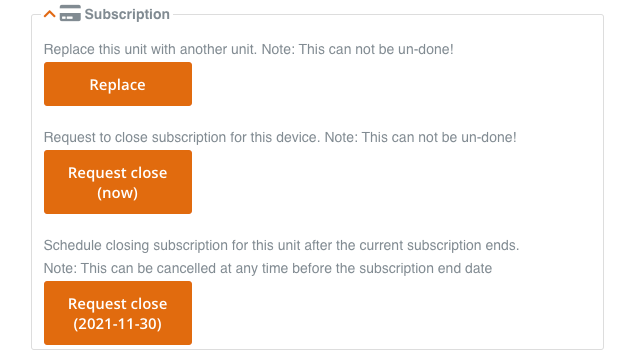
Click Replace and enter the serial number of the new device.

A new tile will appear on your device dashboard. You can see which tracking device your new device is a replacement for by moving the arrow over the tile.
If you click on the replacement tile, you are able to see the data of the old device.
On the list of devices, you can see the replaced devices. They are marked with orange.


If you press Request close (now) it will terminate the SIM-Card of the device and you will not be able to see data regarding this tracking device anymore.
You can use this, if the battery is empty, or you have no need for this device any longer.
Please be aware that you should only use this option if you no longer need either the tracking device and the data. This can not be un-done.
If you wish to close your subscription for the device after the current subscription ends, you can press Request close (date). This can be cancelled at any time before the subscription end date.
Other articles in this category that might help
Can't find what you're looking for? Our support team is here to help.
Contact Support