Setup
Examine
Read article
You can edit multiple devices at once to save time and to ensure synchronized transmission settings from other devices assigned to similar tasks.
From any Group tile view, click on the large tile with the tracking icon to see all your trackers.
You can also click the Edit tile in a group to multi-edit the devices in that group.

Select the devices you want to multi-edit by checking the boxes to the left of them. If desired, you can also scroll to the bottom of the list and click Select all.
Scroll further down and click Edit to multi-edit the selected devices.

You can now multi-edit the selected devices at once from the drop-down menu.
In the bottom, you can see how many devices are supporting the setting.
If not all devices are supporting the setting, you will have the possibility to edit these remaining devices with another setting.
Remember to click submit changes at the bottom of the page.

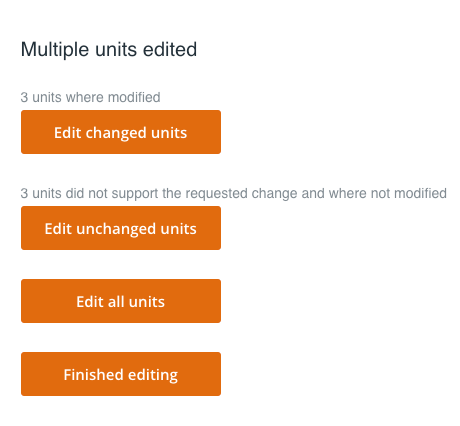
For the device(s) not supporting the setting, you get to choose how to re-edit it/them after submitting the changes.
If you wish to continue multi-editing, click Edit all devices.
When you have edited all the devices you wish to multi-edit, click Finished editing.
Other articles in this category that might help
Can't find what you're looking for? Our support team is here to help.
Contact Support