Setup
Examine
Read article
Go to your device by clicking My devices.
From here, either search or navigate to the device by clicking the device (black tile) or opening the subgroup where it is located.
When you are on device level, click the tile that says Edit.

Learn how to schedule transmissions or set up triggers.
When editing the settings on your device, changes will be saved on site instantly.
However, these new configurations will not be applied to the device until its next transmission.
This will be done either through a scheduled transmission or through a trigger based on the configurations currently on the device.
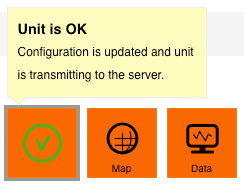
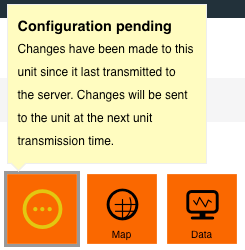
You can always see the status of your device on this orange tile (see images on your right).
The status is either:
If the Device is OK, then the configuration is updated, and the device has transmitted the data to the server.
If there is a Configuration pending, it means that changes have been made to the device since last transmission. At next transmission, the configurations will be taken into account.
If there is No communication, it means that the device has missed 5 or more consecutive scheduled transmissions, and that it is at least 5 days since last transmission.
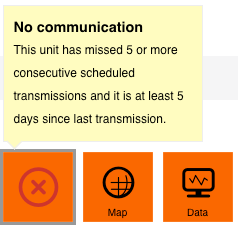
Please check the installation and location of the device and the estimated battery life.
If you wish, you can force through configurations by placing a magnet where it says Activate with magnet on the device until the left LED starts flashing red.
See activation video here.
Then any new configurations take effect immediately. Data will also be sent from the device to the Trusted Data Portal.
As you edit, configurations which are pending are differentiated from already saved configurations by having red buttons and red text as displayed to the right.
Other articles in this category that might help
Can't find what you're looking for? Our support team is here to help.
Contact Support