Other features
QR scans
Read article
The Share feature is designed for users who want to share data from their individual devices with colleagues or external people who are not users of the Trusted Data Portal.

The feature creates a public link you can share. Anyone with access to the link has access to the data you have shared.
Don’t worry. It is designed to be safe and private to users, despite its public nature.
This means that viewers are not able to change the configuration of your device in any way. They are only able to view the data you chose to share when creating the public link and nothing more.
You can unshare the link anytime, removing all public access to positions and data again immediately.
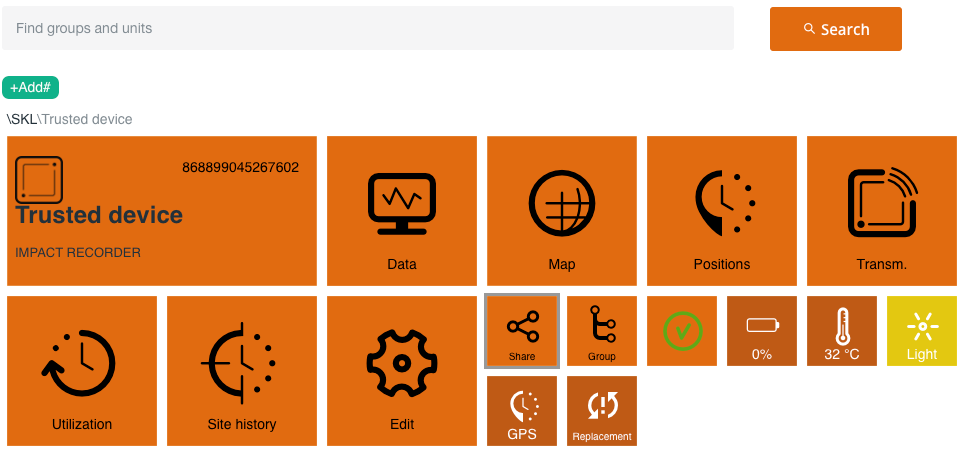
Click the Share tile to begin. This is found in your device view. Nothings is shared until you click Get link.
Before you the link, you need to define a few things.

Your input of date and time determines how much data you want to be shared.
If you set the data and time for your current point in time, no data would be available until the next transmission of the device.
If you set a past date, all data that has been recorded from this date is now shared with viewers of your link.
You cannot specify an end date for when you shared link expires. This means you need to manually unshare your link if you do not want the data to be viewable from the link anymore.
See more below.

To make it easier for you to see if your device is shared, the Share icon in your device view will turn green when there is an active public link.
There are three types of data you can share.
The first is Map view of positions. This is a map with the positions your device has recorded from your selected date and time.
Guests can browse the map and follow the movement and various positions of a device until you unshare.
The second is List view of position details which is the same data as found in your Positions list – limited to your specified start date and time.
The third is Data graphs, which shares the data recorded by your device from the specified start date and time.

Click Get link to confirm your selection and activate Share.
A public link will become available to you in a grey box.
Click the button Copy link and paste it into a message to send to your contacts.
Share the link with the people you want to see your data.
If you have selected to share both map and positions list, the link will lead them to a public page with very limited options and information.
If you have selected to share only one of map or postions list, the link will lead them directly to that feature.

Only the data you have chosen to share is publically available and guests are not able to change any configurations to the device.

However. As you can see, there are a few pieces of data available besides the position data in map or/and list view, which will be made public:
The filters feature in the positions list is also available for shared positions.
Note that by default, the time zone is UTC, and the devices of measurement are celcius and the metric system.

When you click Get link, Share is active, and the types of data you have chosen to share are now viewable for anyone with the link.
If you want to change your shared data or unshare all together, you now have a few options.

You can click the Unshare button to turn off Share and make all data private to you and other Trusted users with access to your device.
This will immediately cut off public access and the link will instead refer visitors to trustedglobal.com.
When you click Unshare, the link will become permanently unavailable.
This means that you will need to send your contacts a new link, if you want to share your device data with them again.
So, if instead of unsharing entirely the data you are sharing, you should instead configure your shared link.
See below.
It is possible to edit the start date and time for your shared data along with the types of data you shared when activating the link.
This is a handy option as any changes are made immediately and do not require you to share an entirely new link with your contacts.
Changes take effect immediately and only require your contacts to reload to the webpage.
Other articles in this category that might help
Can't find what you're looking for? Our support team is here to help.
Contact Support