Other features
QR scans
Read article
In this article we will explore possibilities of Geo sites.
A geo site is a great tool if you want to be notified in case your data tracker arrives at or leaves a certain geographical area.
Geo sites can be used in combination with the following alarms:
Arriving at or leaving a geo site will not trigger an individual transmission. A geo site alarm will only be sent out at the same time as a scheduled or triggered transmission.
You can create a geo site in two different ways: on a device level or on a group level.
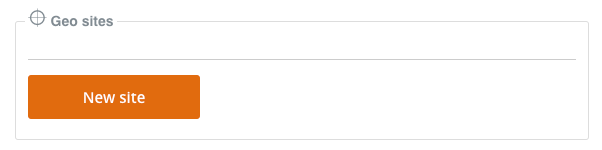
You can go to the Edit section for a device, then scroll down to Geo sites and click New site.
First of all, please give the geo site a name.
To select the geo site, you can either write the address in the grey box in the top left corner of the map or find the location directly on the map.
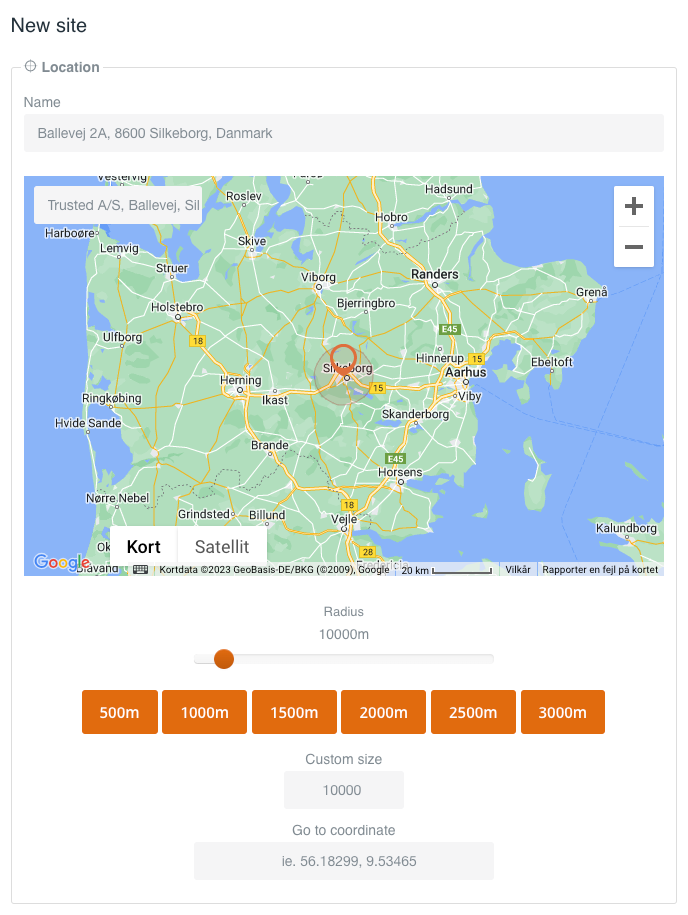
Select the desired radius around the pin to define the area that the geo site should cover.
You can either drag the slider, select a radius in one of the orange tiles or custom a radius size.
Click Create site.
Another way to create a geo site is by clicking Edit sites in a group or a subgroup and click Add site.
Then please follow the same steps as described above.
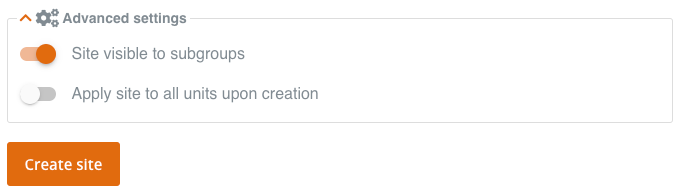
Switch on Site visible to subgroups to make this site visible to all devices in all subgroups.
Switch on Apply site to all devices upon creation to apply this site to all devices that will be moved into this (sub)group from now on.
Geo sites that overly large (more than 20,000m) can overlap other geo sites and cause informational confusion.
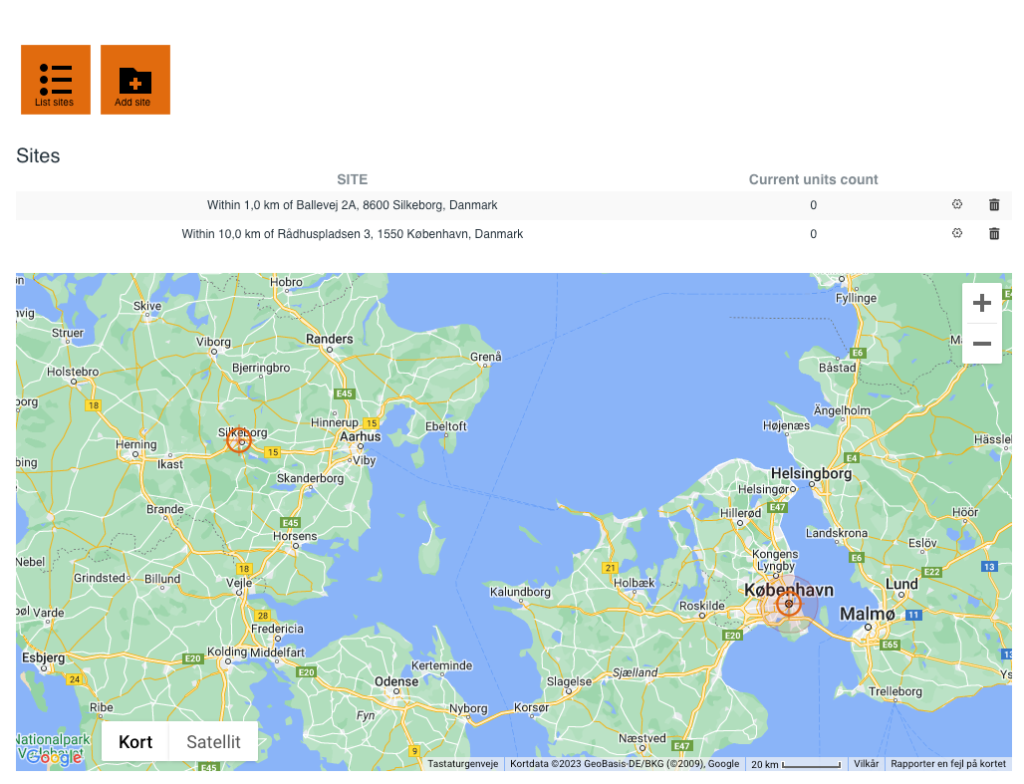
To edit or delete a geo site, you can click Edit sites on a group or subgroup level.

This will lead you to a page where you can see the sites on a list and on a map.
The list of sites shows you all the sites you have saved in the group. If you see no sites, try to go to the parent group or subgroup.
The field Current device count indicates how many devices that are current located at the site.
On the list of sites, you can edit the geo site by clicking the settings icon.
You can delete the site by clicking the dustbin icon.
On the map, you have an overview of all the geo sites in the group
When you have created one or more geo sites, you can set up your data tracker to notify you by SMS or email if:
At next scheduled or triggered transmission, you will receive an alarm notifying you that your data tracker has arrived at or left the geo site.
See Alarm settings for more information.
Remember to define which geo site(s) that should be taken into account under Geo sites.
You can select geo sites by making the dot orange or deselect by making it grey.
Click the orange info button to view the geo location on a map.

If you click Idle devices, you get an overview of devices that has not left the geo site for at specific number of days.

This overview helps you keep track of how many devices are at your geosite and which of your tracked assets never leave your site.
This is valuable knowledge in many use cases, but especially fleet management and for rental companies.
Drag the button to show days on sites on map.
Devices: Total number of devices in the group
Idle devices: Total number of idle devices in the group
Min. idle days: Minimum days devices have been idle on sites
Max. idle days: Maximum days devices have been idle on sites

On a device level, click Site history to see the site visit history of your device with Arrival and Departure time.

Site visits enable you to see the sites attached to your device.
This tool enables you to see how many times your device has visited your sites.
The column on the right visit count shows the number of visits to each site.
Click on reset to reset the visit count column.

Other articles in this category that might help
Can't find what you're looking for? Our support team is here to help.
Contact Support